
Welcome to CoHost! We're excited to have you here. If you're setting up your account and show for the first time, you're in the right place. This guide walks you through everything step by step, so you can get up and running within just a few minutes.
1. Follow this link to create your CoHost account and start your 7-day free trial
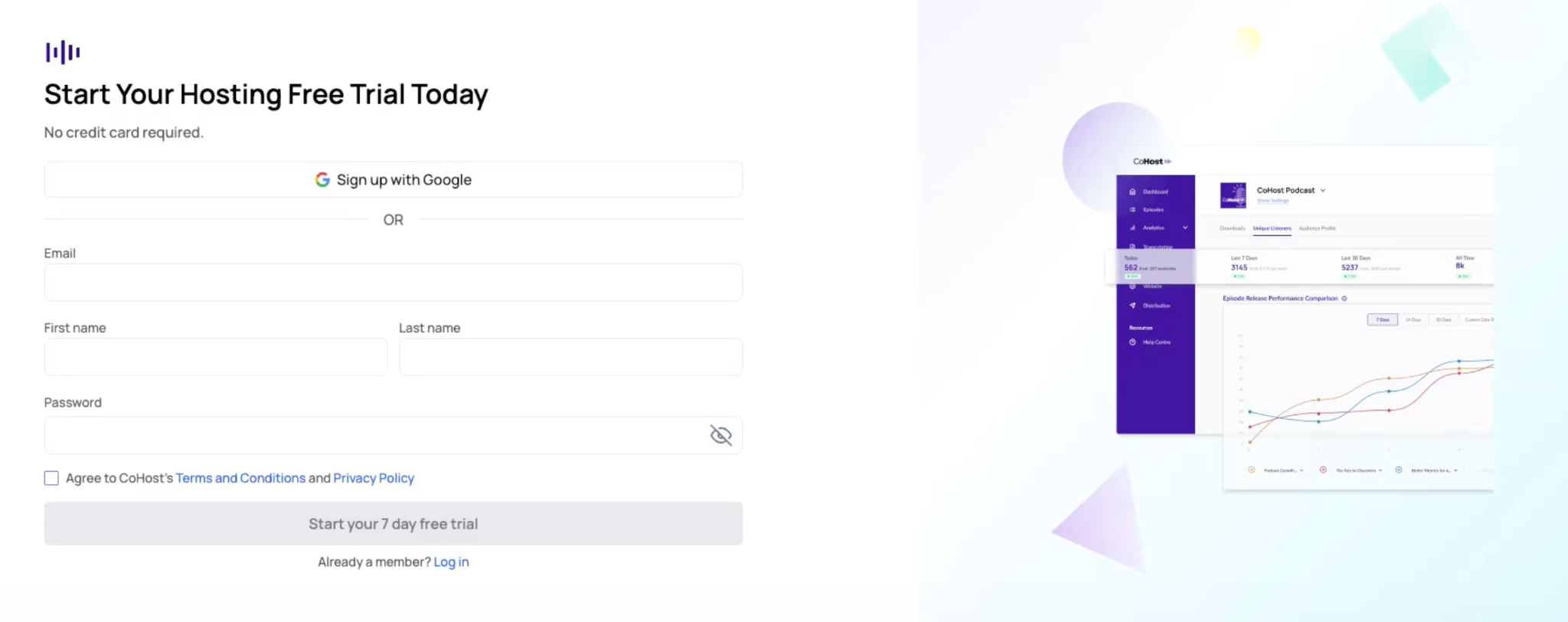
2. Enter your email, first name, last name, and create a password. Or sign up with Google.
3. Complete a short onboarding survey – how you found CoHost, your role, and your biggest podcasting challenge.
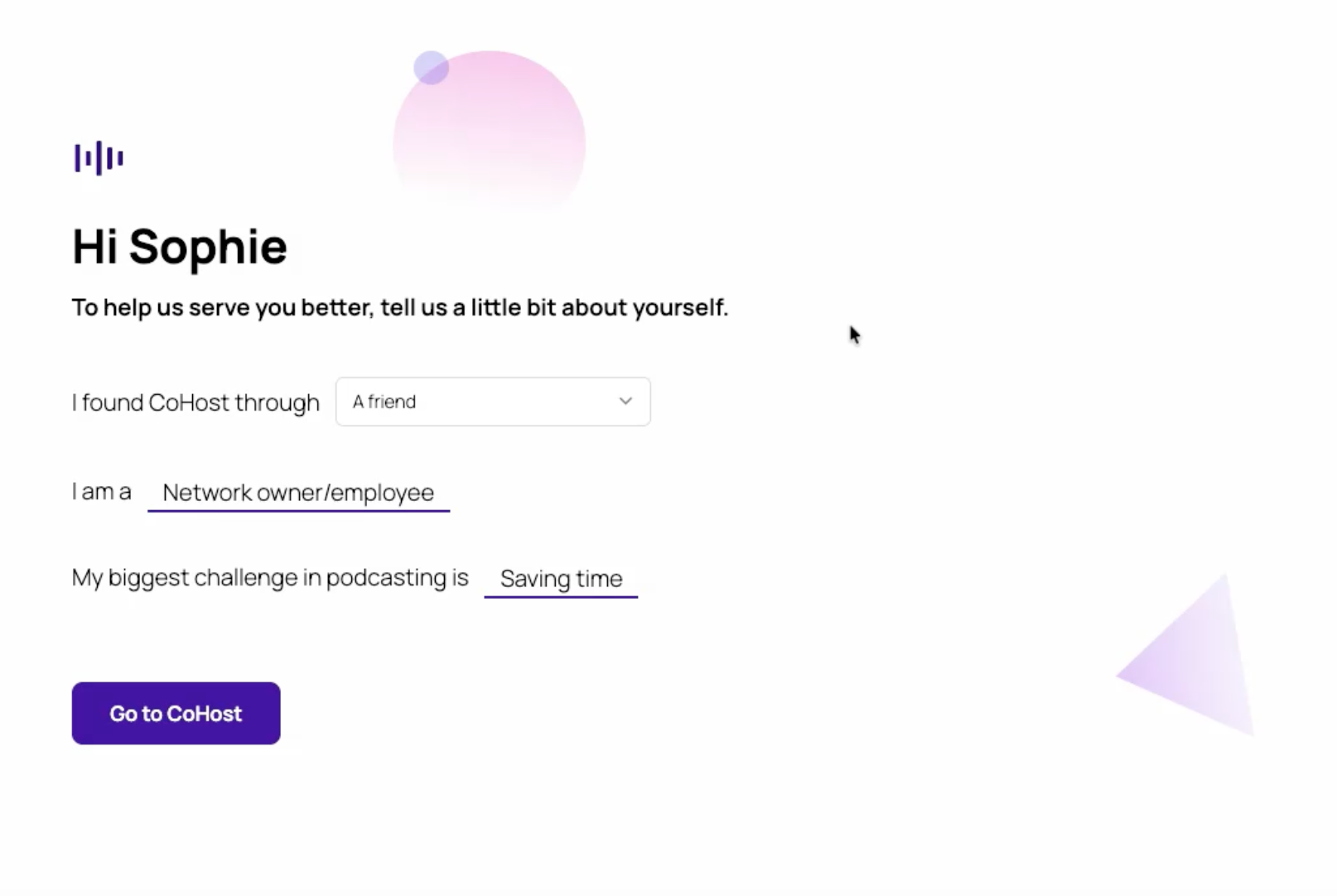
4. Click on “Go to CoHost.”
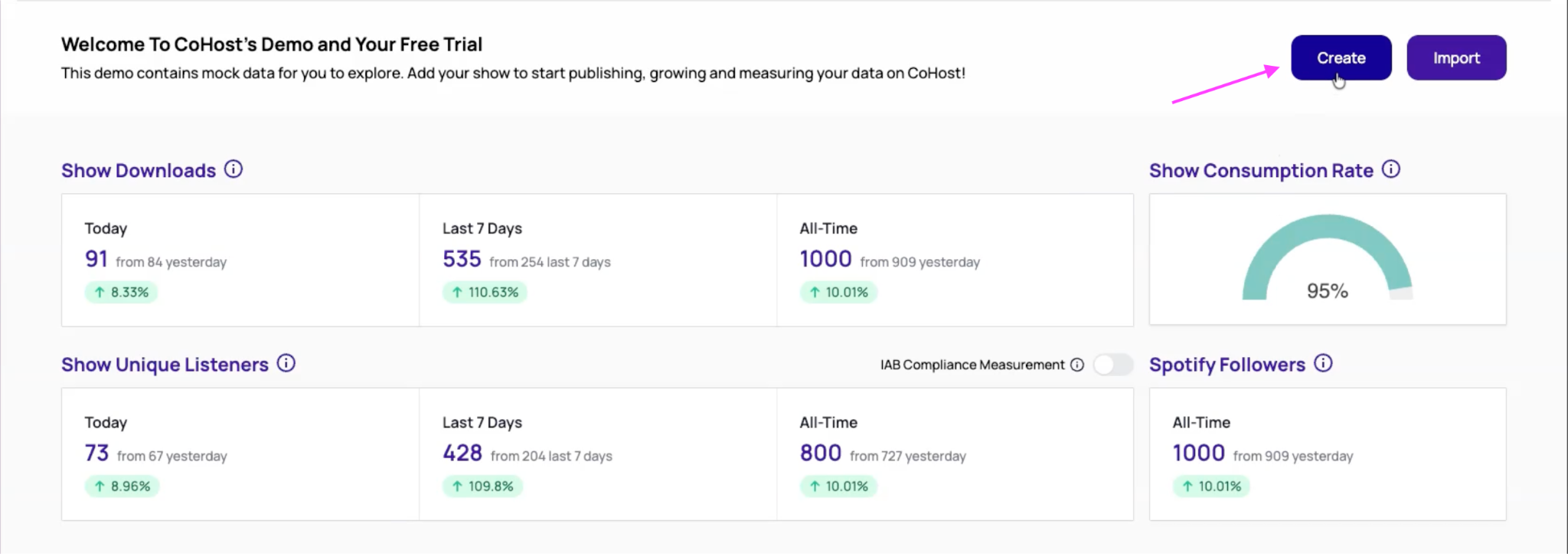
5. Once you’re in the platform, click the “Create” button in the top right of your dashboard.
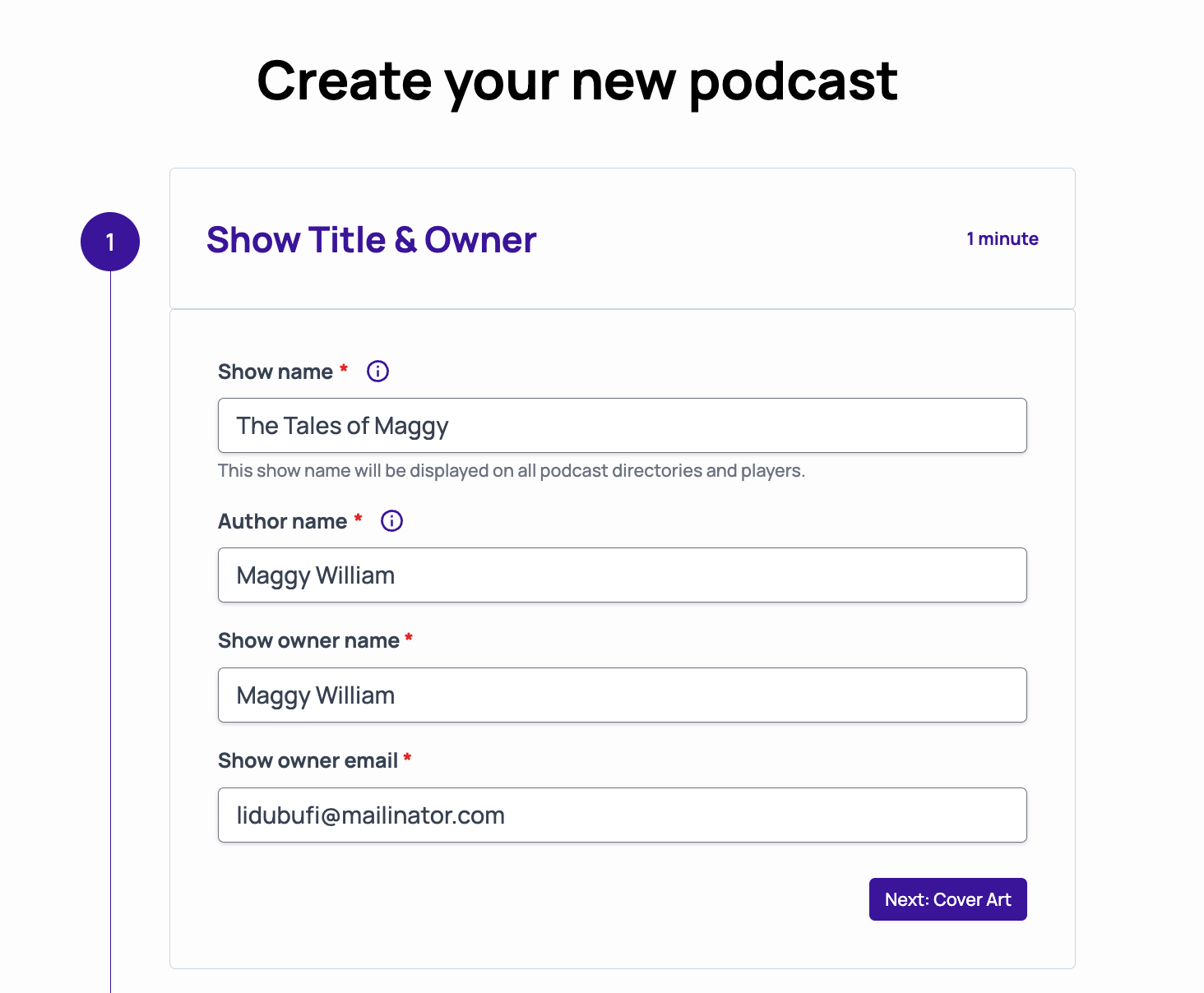
6. Enter your show name, author name, show owner name, and show owner email, which will be used in the RSS feed. Click “Next: Cover Art” in the bottom right corner to continue.
7. Upload your podcast cover art. Our file size limit is 2MB, and we suggest 3000x3000 pixels for the best quality. Then click “Next: Description & Categories” in the bottom right corner.
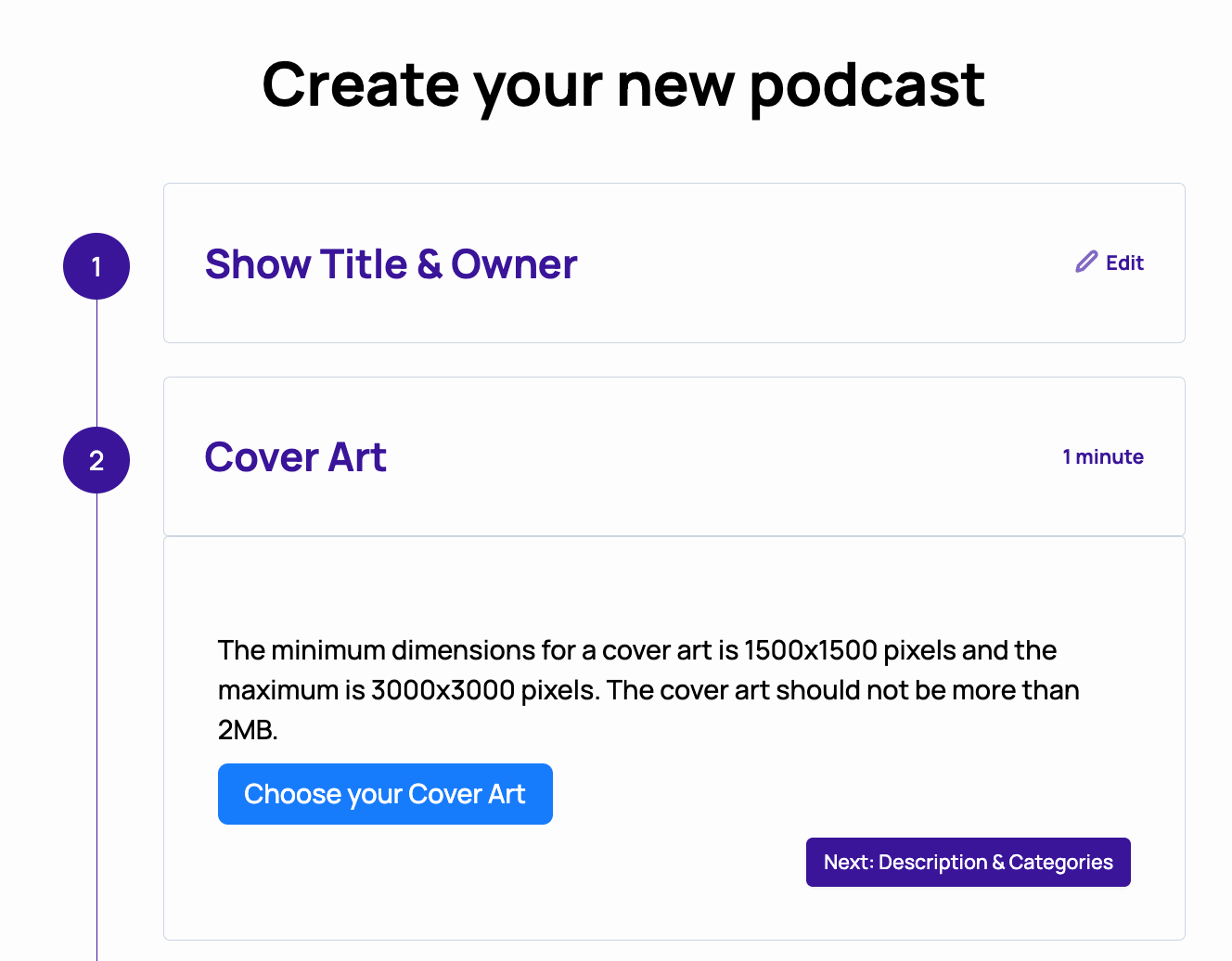
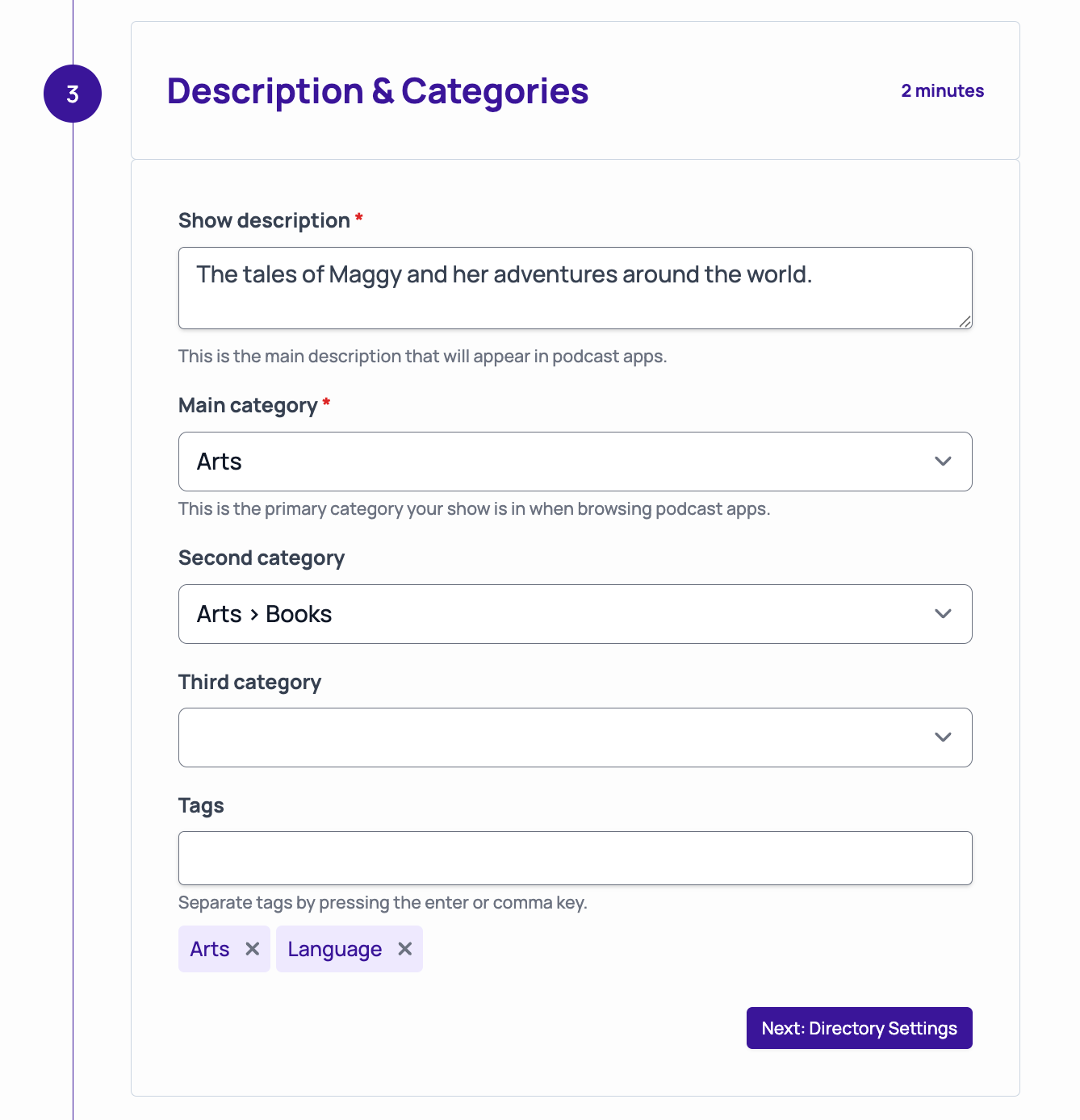
8. Add your show description and select your podcast category. You also have the option to add tags and additional categories. When you’re done, click “Next: Discovery Settings” in the bottom right corner.
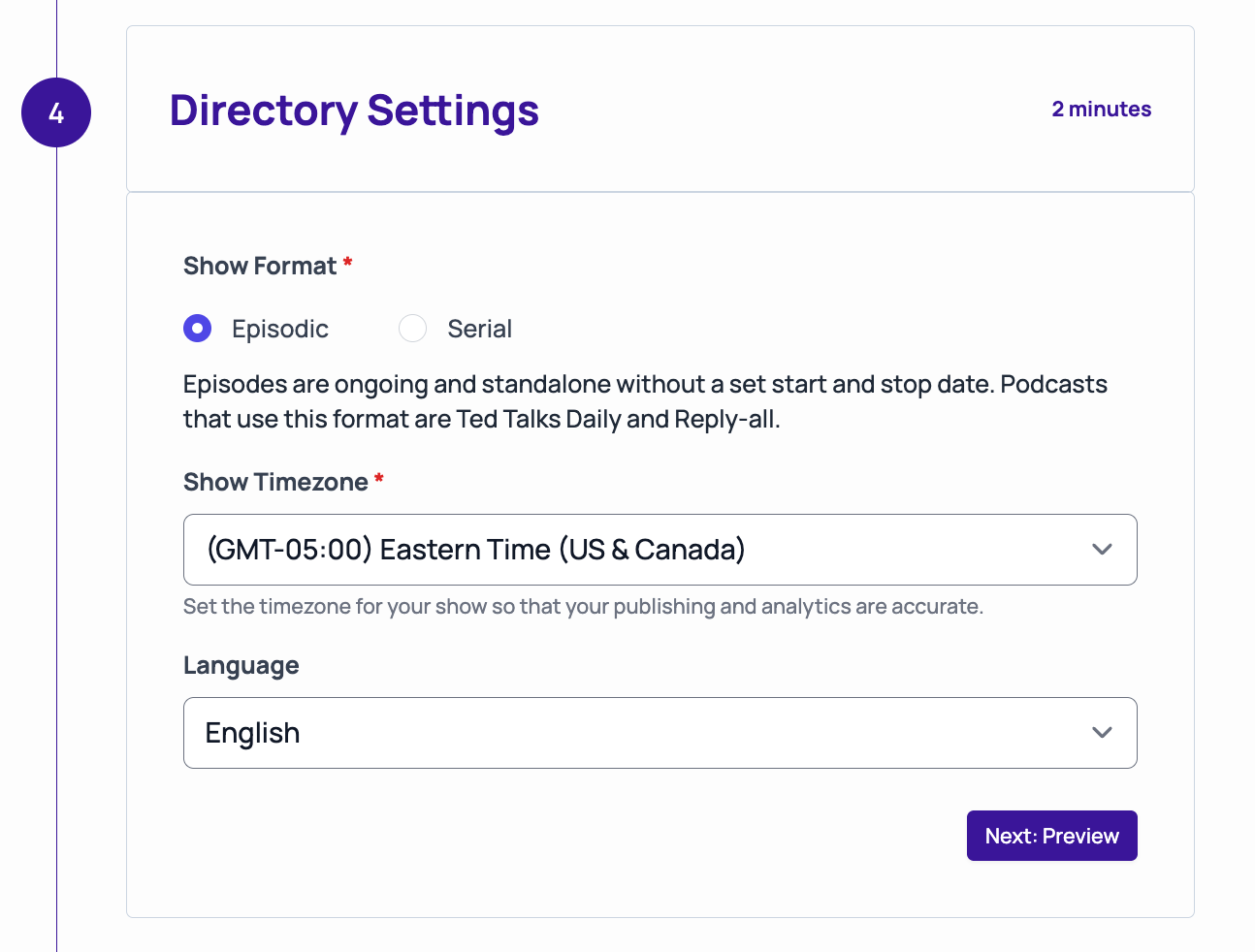
9. Select whether your show is episodic or serial, as well as your timezone and language. Then, click “Next: Preview.”
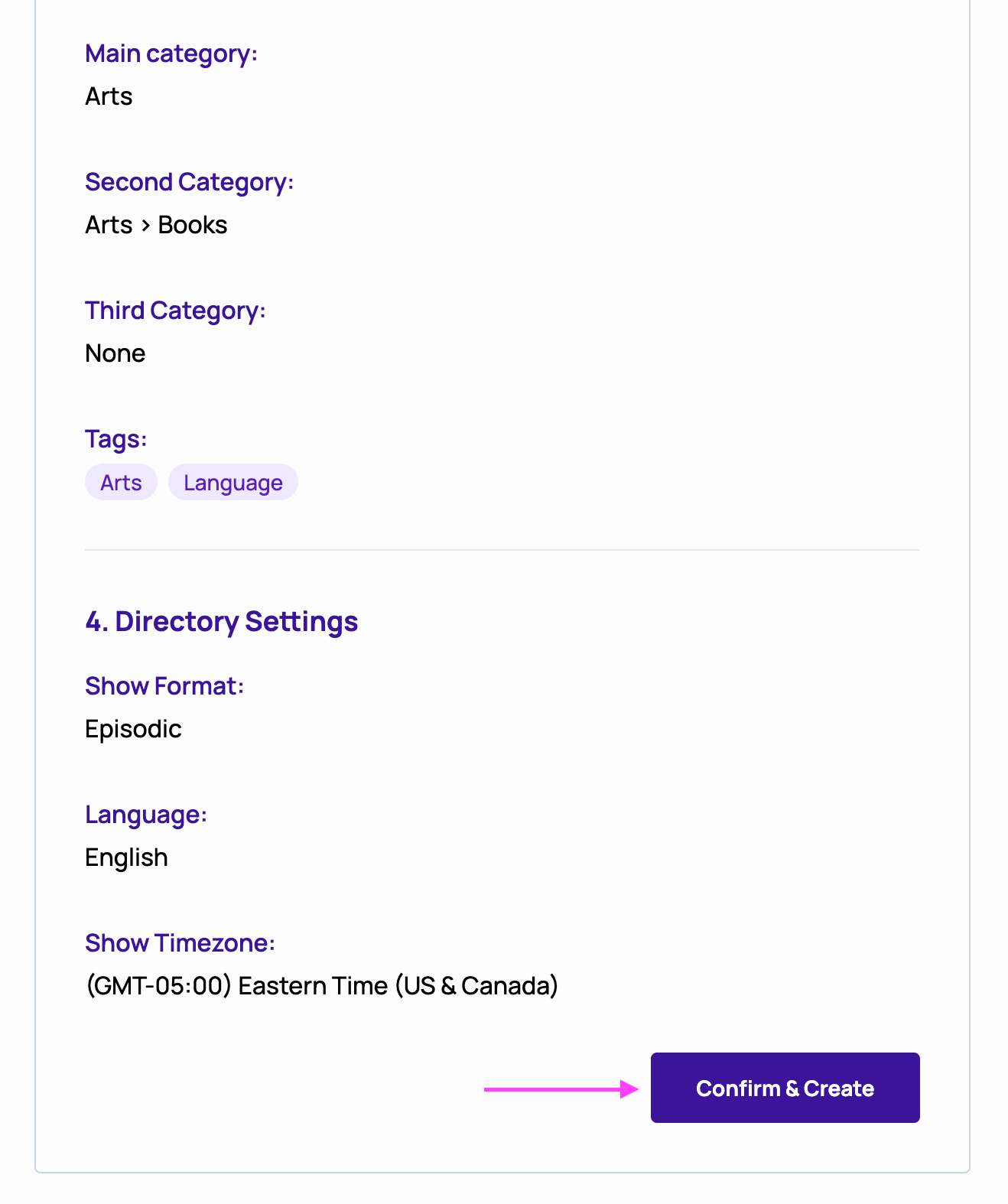
10. Review all of the information you’ve just submitted. If everything looks good, click “Confirm & Create.”
11. Congratulations! You’ve just created your first podcast on CoHost. You’ll be redirected back to the Dashboard, where you can start exploring the platform.
Not sure where to get started? Here are some other knowledge base articles you can use as a launch pad: