---
title: How to connect CoHost to YouTube
description: Learn what CoHost handles automatically when you publish video to Apple Podcasts, and what you'll need to have ready before you submit.
---
[Skip to content](https://help.cohostpodcasting.com/how-to-connect-cohost-to-youtube#main-content)
[Submit a Support Request](https://help.cohostpodcasting.com/kb-tickets/new?hsLang=en-us)
[](https://www.cohostpodcasting.com/?utm_source=hubspot&utm_medium=banner&utm_campaign=knowledge-base)
Open main navigation
Close main navigation
- [Submit a Support Request](https://help.cohostpodcasting.com/kb-tickets/new)
How can we help you?
- There are no suggestions because the search field is empty.
1. [CoHost Help Center](https://help.cohostpodcasting.com/?hsLang=en-us)
2. [Create, publish, and edit my episodes](https://help.cohostpodcasting.com/create-publish-and-edit-my-episodes?hsLang=en-us)
November 25, 2026
# How to connect CoHost to YouTube
## Learn how to connect your YouTube channel to CoHost and publish video episodes to it, with an audio version for your podcast feed.
Video podcasts are growing, and YouTube is another place to publish your video episodes straight from CoHost. You upload your video once and publish it to YouTube from CoHost, so you don't need to upload it to YouTube separately. CoHost can also convert your video to audio for your podcast feed.
In this article, we'll go over how to connect to YouTube in CoHost, how to add a video episode, what you need to have ready, and what to check if something doesn't work.
This guide is for the person who manages the show and can sign in to the Google account linked to the YouTube channel.
### **How to connect YouTube in CoHost**
You'll connect your YouTube channel from the **Integrations** page. You sign in with Google on Google's own page, then allow CoHost access.
#### **Steps to set up YouTube in CoHost**
1. In the CoHost left-side navigation bar, click **Integrations**.
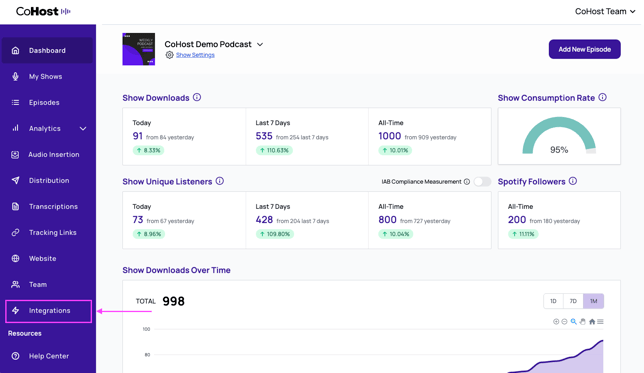
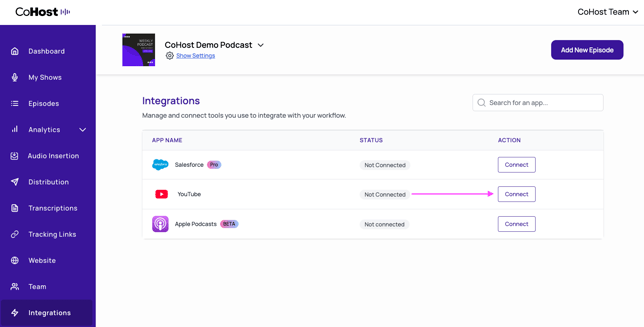
2. Locate **YouTube** in the integrations table and click **Connect**. If you don’t see this option, [contact CoHost support](mailto:support@cohostpodcasting.com) for further assistance.
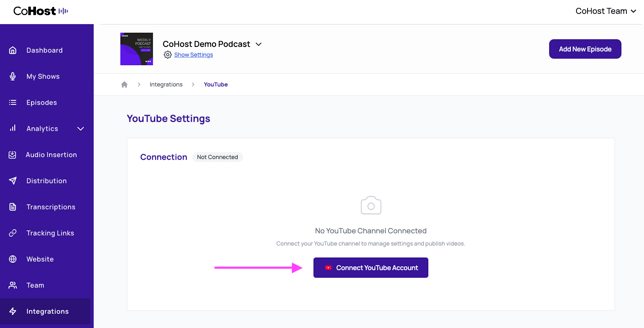
3. Click **Connect YouTube account**. CoHost takes you to Google's sign-in page.
4. Sign in with the Google account linked to your YouTube channel, then continue through the prompts.
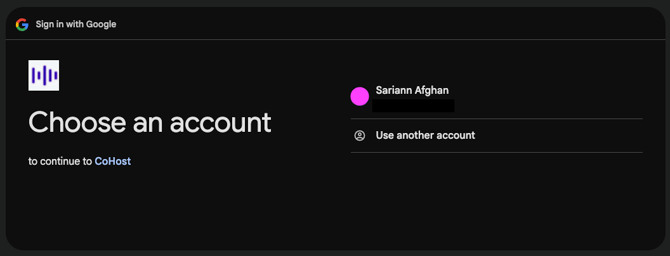
5. When Google says CoHost wants access to your Google account, click **"Allow"**.
6. You return to CoHost and your YouTube channel appears. Check that the channel information is correct before you continue.
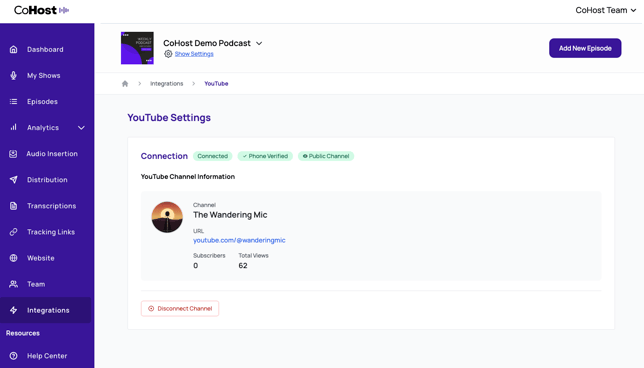
**Note:** If you manage more than one YouTube channel, make sure the channel shown is the one you want to publish to.
### **How to add a video episode that publishes to YouTube**
Once YouTube is connected, you can add a video episode and publish it to your channel. You'll also set up an audio version of the episode in the same flow.
#### **Steps to create a video episode**
1. Click **Add New Episode**, then toggle on the **Video** option.
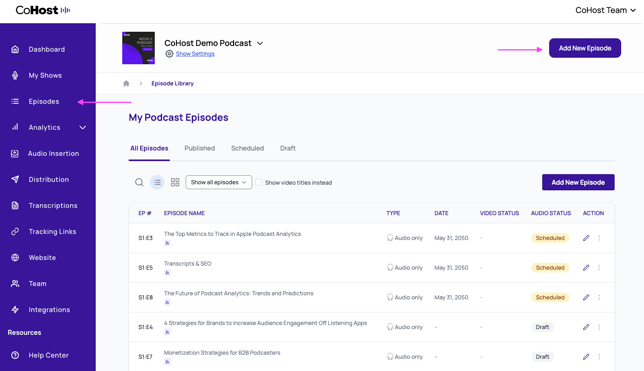
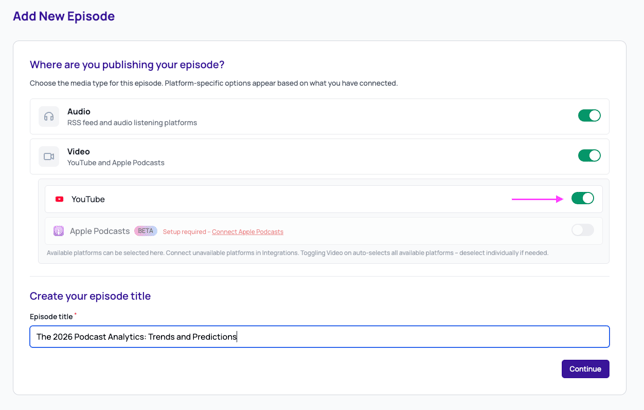
2. Make sure **YouTube** is turned on for this episode. Enter your episode **title,** then click **Continue.**
3. Upload your video file. Use the help link on this step to review [YouTube's video requirements](https://support.google.com/youtube/topic/16547?hl=en&ref_topic=9257610) before you upload.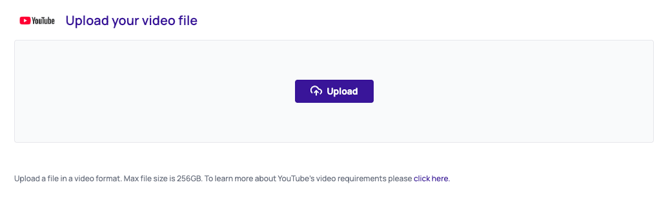
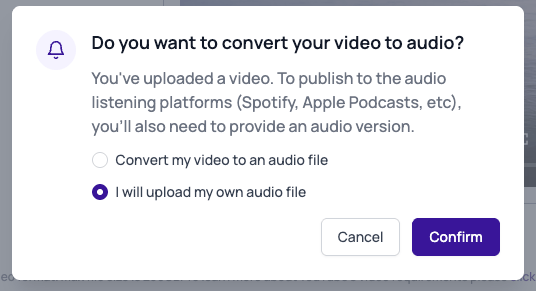
4. After the upload, choose how to get your audio. Click the option to **convert your video to audio,** and CoHost converts it for you, or skip the conversion and upload your own audio file in the audio setup step.
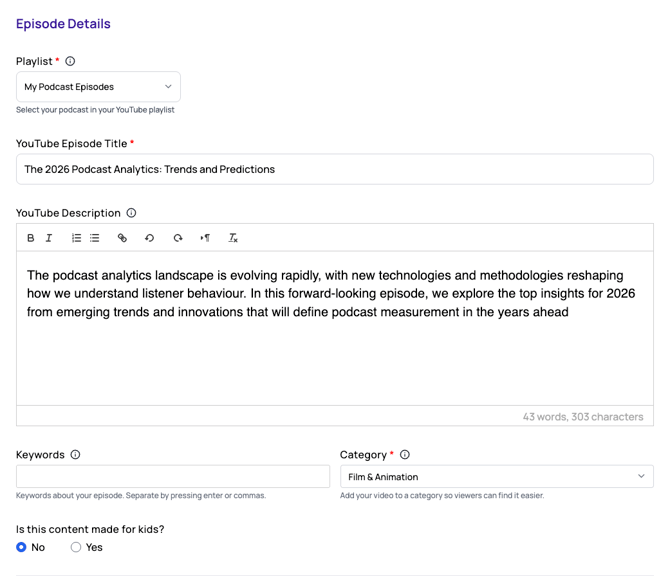
5. Complete your video episode details: select the **playlist** dropdown and choose your podcast (see the note below), add your **description**, select a **category**, and choose your **publishing details**.
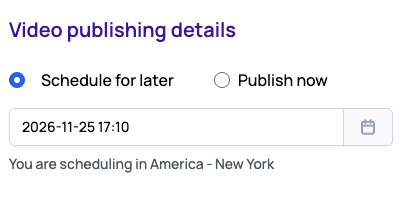
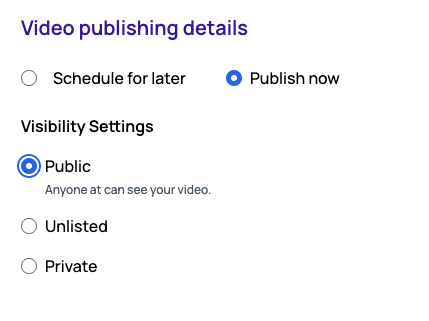
6. Choose your video **publishing details**: select **Schedule later** and pick a date and time, or select **Publish now** and choose a visibility setting. See Publishing options below.
7. Click **Go to audio setup**. If CoHost is converting your video, the page shows the conversion status, and the audio appears here once it's ready. You can carry over the details you entered for the video, and CoHost fills in the missing audio fields.
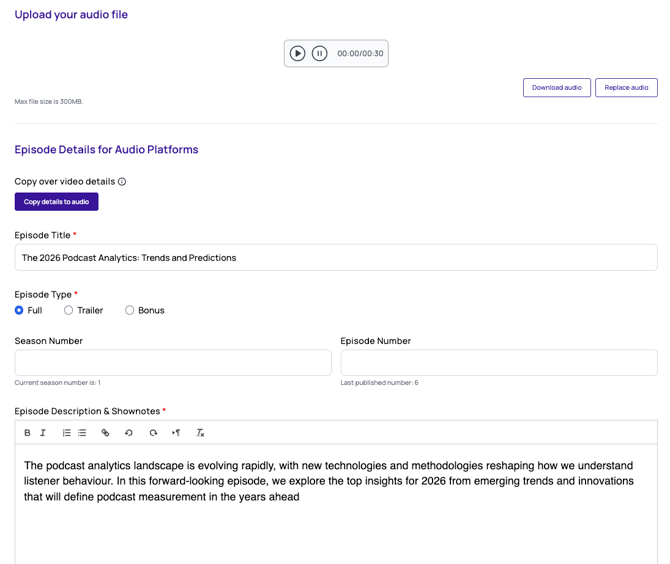
8. Select your publishing details for the audio, then click **Schedule**.
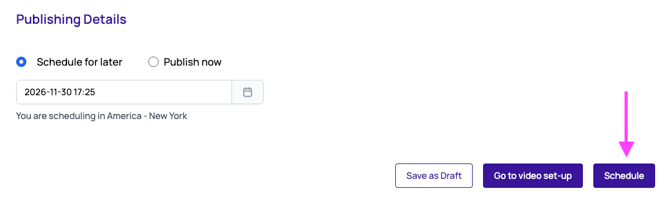
**Notes:**
- **Choose your podcast as the playlist.** On YouTube, a podcast is a playlist. Choose your podcast in the **playlist** dropdown so YouTube recognizes your episode as a podcast. Once you choose it, CoHost saves it as your default playlist, because it won't change from episode to episode.
- **Large files take time.** Large files can take a while to upload. Keep the page open until the upload finishes.
#### **What you need before you upload**
Have the following ready before you start uploading, so you can get through the video episode steps without stopping.
| Requirement | Detail |
| --- | --- |
| YouTube channel | The channel you want to publish your video episodes to. |
| Google account | The account linked to that channel. You sign in with it on Google's own page. |
| Video file | Up to 256 GB, in one of the supported formats below. Use the help link on the upload step to review [YouTube's video requirements](https://support.google.com/youtube/topic/16547?hl=en&ref_topic=9257610). |
| Episode details | Title, description, playlist (choose your podcast), and category. |
| Publishing details | Publish now (and choose a visibility setting) or schedule for later (and choose a date and time). See Publishing options below. |
| Audio file (optional) | Only if you don't want CoHost to convert your video to audio for you. |
| Supported video formats | MOV, MPEG4, MP4, AVI, WMV, MPEGPS, FLV, 3GPP, and WebM. |
If you upload a file outside these specifications, CoHost shows you an error before the video uploads and processes, so you can fix the file and try again.
### **Publishing options**
In the publishing details, choose when your episode goes out:
| Option | What happens |
| --- | --- |
| Schedule later | Select the date and time you want the episode to publish. |
| Publish now | Publishes your episode right away. CoHost prompts you to choose a visibility setting. |
If you choose **Publish now**, select one of these visibility settings:
- **Public:** anyone can see your video.
- **Unlisted:** anyone can see your video if they have the link.
- **Private:** only you and the people you invite can see your video. It won't appear in the videos tab of your channel.
### **What CoHost handles for you**
If you don't have an audio version of your video episode, CoHost can convert your video to audio. It notifies you when the audio file is ready, and the audio setup step shows the status while it converts. You can also carry over your video details to the audio portion, and CoHost fills in the missing areas.
### **After you submit**
When you submit both the video and the audio, CoHost returns you to the **View Episode** page with a notification that your video has been **published** or **scheduled**.
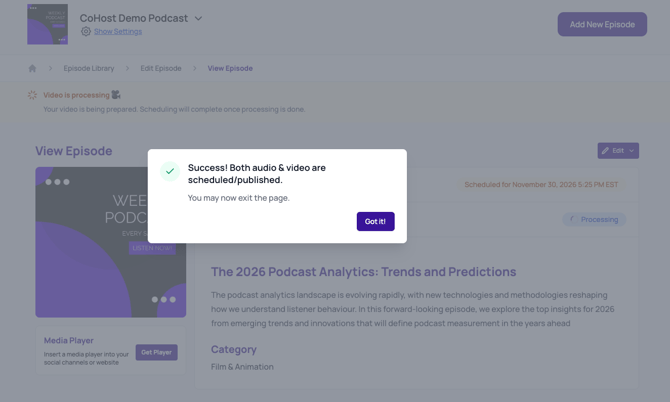
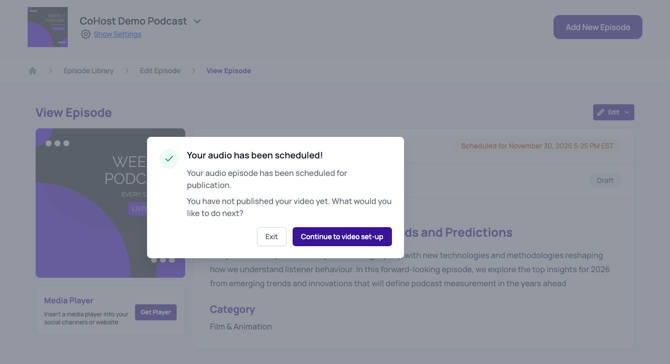
**Note:** Make sure you submit both your audio and your video information. If you finish one but not the other, CoHost prompts you to finish the remaining one.
For example, after you schedule your audio, a message tells you that you haven't published your video yet and asks what you'd like to do next. Select **"Continue to video set-up"** to finish the video, or **"Exit"** to leave without publishing it.
****
**Common reasons an episode might not publish**
- **Your YouTube channel doesn't appear after you allow access.** Confirm you signed in with the Google account that owns the channel. If it still doesn't appear, go back to **Integrations** and connect again.
- **Your video won't upload.** CoHost shows an error before the upload starts if the file is outside the supported specifications. Check that the file is a supported format (MOV, MPEG4, MP4, AVI, WMV, MPEGPS, FLV, 3GPP, or WebM), is under 256 GB, and meets YouTube's video requirements, using the [help link on the upload step](https://support.google.com/youtube/topic/16547?hl=en&ref_topic=9257610).
- **Your audio file isn't ready.** Conversion runs in the background. The audio setup step shows its status, and CoHost notifies you when it finishes.
### **Checklist: before you submit a video episode**
1. **Channel:** YouTube is connected on **Integrations** and shows the right channel.
2. **Toggle:** **YouTube** is turned on for this episode.
3. **Video:** the file is a supported format, is up to 256 GB, and meets YouTube's video requirements.
4. **Audio:** you chose to convert your video, or you uploaded your own audio file.
5. **Details:** title, description, playlist (your podcast), category, and publishing details are filled in for both video and audio.
**Need help?** Reach out to [CoHost support](mailto:support@cohostpodcasting.com) or your account manager, and let them know the show name, the step where you got stuck, and any error message you saw. That way, we can get you sorted faster.
1. Go to [podcastconnect.apple.com](http://podcastsconnect.apple.com/) and sign in with your Apple ID.
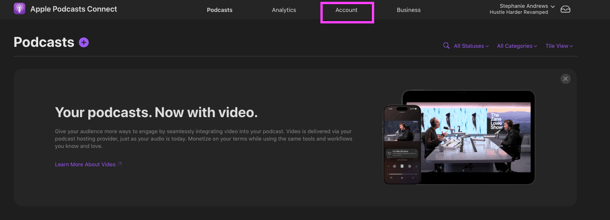
2. In the top navigation, click **Account → Keys.**
****
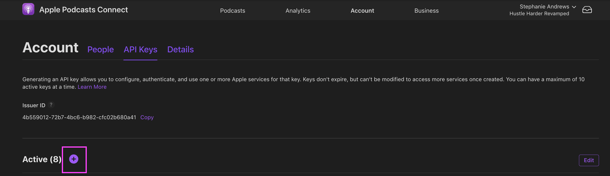
3. Click the **"+" button** to generate a new API key. Name it something recognizable like "CoHost."
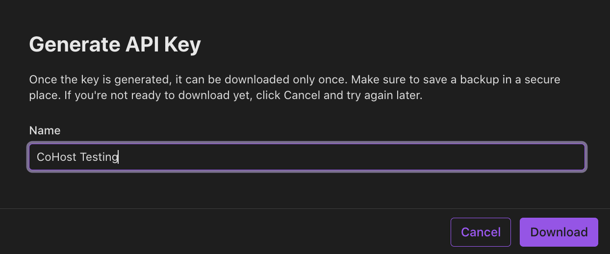
4. By clicking "**Download"** the .pem file will download immediately. Apple only lets you download it once per key so ensure you keep it in a safe spot!
5. **Copy the Key ID** shown next to your new key.
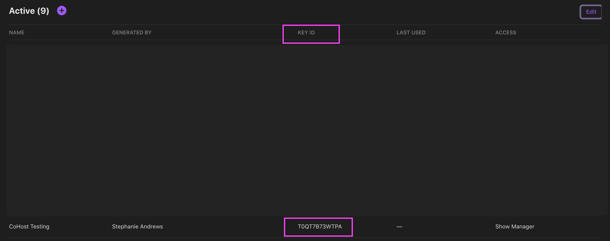
6. **Copy the Issuer ID** shown at the top of the Keys page. This is the same for all your keys.

### **Steps to setup Apple Podcasts in CoHost**
1. Go to CoHost and [log in](https://secure.cohostpodcasting.com/) with your credentials.
2. From the left navigation, go to **Integrations**. Apple Podcasts will appear in the integrations table with a status of "Not connected."
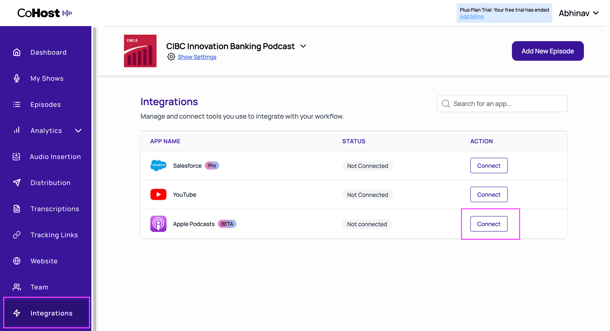
3. Click "**Connect"** next to Apple Podcasts.
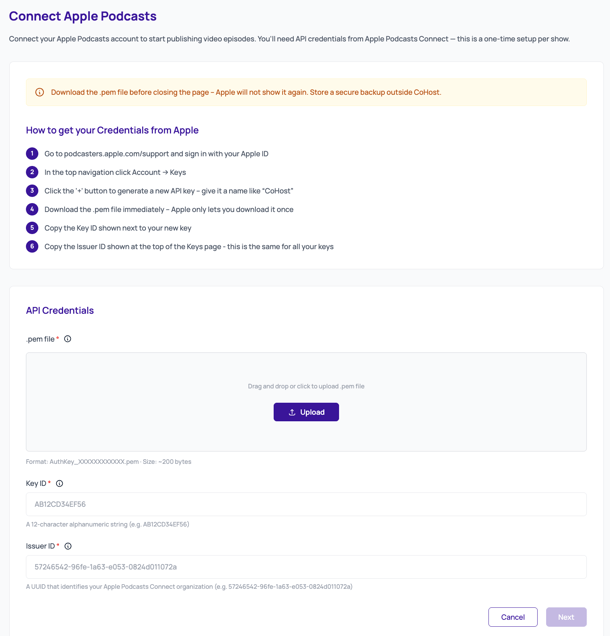
4. On the Connect Apple Podcasts page, upload your **.pem file** and enter your **Key ID** and **Issuer ID** in the fields provided. When all three are filled in, click “**Next”**.
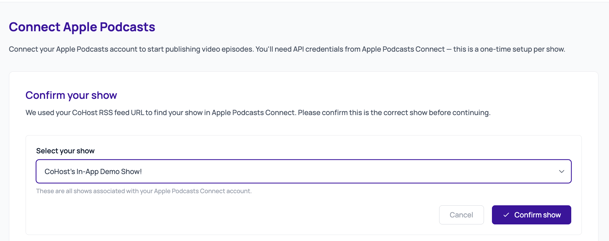
5. CoHost will automatically match your show using your RSS feed URL. Carefully review the show displayed before confirming — some Apple Podcasts Connect accounts have duplicate show records, so double-check details like the title and artwork match your intended show exactly. If it isn’t correct, click "**Select manually instead"** to choose your show from a dropdown of all shows associated with your Apple Podcasts Connect account.
6. Review and accept both required terms:
- **Apple Podcasts Connect Terms of Service**: Click "Open terms" to review in a new tab, then check the box to accept on behalf of this show.
- - **Your content responsibility**: Check the box to confirm the content you publish meets [Apple's guidelines](https://podcasters.apple.com/support/891-content-and-subscription-guidelines) and [CoHost's Terms of Service.](https://cohostpodcasting.com/terms-and-conditions/)
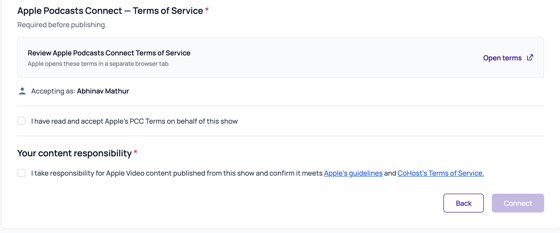
- Click "**Connect"**. Apple Podcasts will now show as "Connected" in your Integrations table.
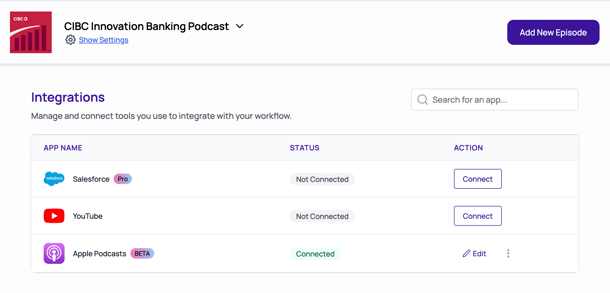
**Note:** Store a secure backup of your .pem file outside of CoHost. If your key is revoked or lost, you'll need to generate a new one from Apple Podcasts Connect and reconnect.
### **How to add a video file to your episode in CoHost**
#### If you've connected Apple Podcasts and want to publish a video episode, you'll create your episode through the Audio & Video podcast flow. This is a two-step process: audio is set up first, followed by video.
#### **Steps to create a video episode**
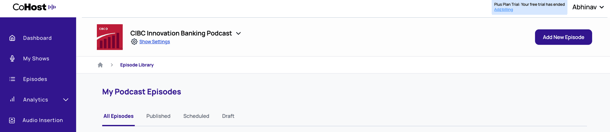
1. From the left navigation, go to **Episodes**, then click "**Add New Episode"**.
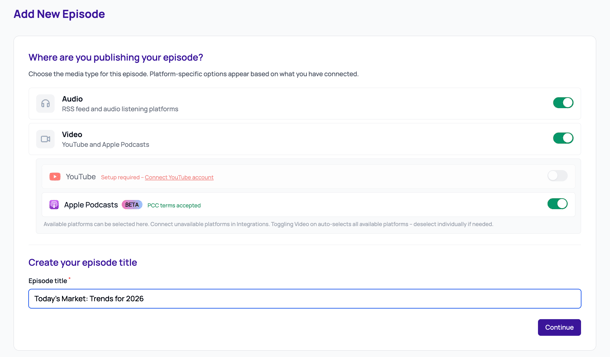
2. Toggle both the **Audio** and **Video** options on as your episode type. Specify which video platforms you want to distribute on.
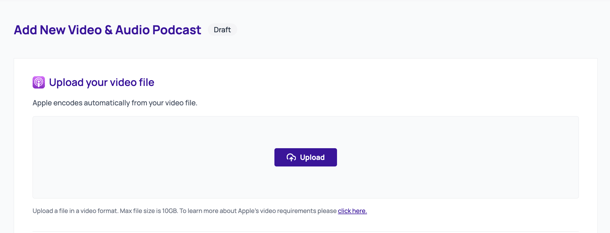
3. On the **video step**, upload your video file by dragging and dropping or clicking "**Upload"** in the video upload area.
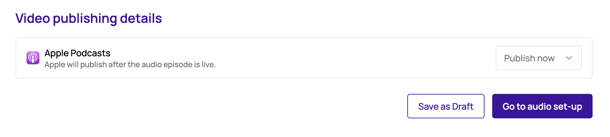
4. Under **Video publishing details,** you’ll see a publish option for **Apple Podcasts (Video)**. Note that this setting doesn’t currently take effect — video publishing happens as a separate, explicit step later (see below). When ready, click **"Go to audio set-up".**
5. On the **audio step**, upload your audio file and fill in your episode details, including title, description, keywords, and category. Under **Publishing Details**, set your audio publish option for Apple Podcasts (Audio). When ready, click "**Publish"**.
6. Under **Apple Thumbnail**, upload a custom thumbnail. If you don't upload one, Apple will generate a thumbnail automatically once your video is published. Dimensions must be 1280×720, accepted formats are JPG or PNG, max 2MB.
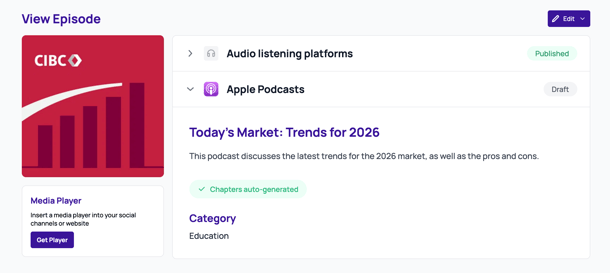
7. When ready, click "**Publish"** to submit your audio episode, or **"Save as Draft"** to save your progress. Note that saving as draft applies to both audio and video. You’ll need to update the publish option on either step to change this.
---
**Note:** Publishing your audio episode does not automatically submit your video to Apple. Video requires a separate, explicit submission, for now. Once your audio episode is live, go to **View Episode** and use the "**Edit"** dropdown to publish your video.
#### **To upload your video file to CoHost, it will need to meet the following requirements:**
| Requirement | Detail |
| --- | --- |
| Accepted formats | MP4, M4V, or MOV only |
| Max file size | 10 GB |
| Max duration | 2 hours |
| Aspect ratio | 16:9 landscape |
| Frame rate | Up to 30 fps |
| Audio | Must include an audio track — video-only files aren't accepted |
| Resolution | Exactly 1920 x 1080 |
CoHost checks file type and size before processing starts. Other requirements, including resolution, orientation, frame rate, and required audio/video tracks, are validated during processing. If validation fails, the episode is marked Failed with instructions to correct and resubmit the file.
### **What CoHost builds automatically**
Once your file is uploaded, CoHost compresses it and generates everything Apple Podcasts requires; you don't need to touch any of this:
| Stream | Status | Purpose |
| --- | --- | --- |
| 720p video | Required (generated automatically) | Default quality on iPhone |
| 1080p video | Required (generated automatically | Default quality on iPad, Mac, Apple TV, Vision Pro |
| 480p video | Generated automatically | Smoother playback on slower connections |
| Audio-only stream | Required (generated automatically) | Delivered to listeners who haven't opted into video |
| I-frame seek stream | Required (generated automatically) | Lets listeners scrub through the timeline and see preview frames |
**A note on 4K/1440p:** CoHost currently requires an exact 1920×1080 source. Higher or lower resolutions, including 1440p and 4K, are not currently supported.
CoHost retains your original uploaded file alongside the compressed master copy and the video/audio streams listed in the table above. We keep the original to support retries and to manage the file across each destination’s lifecycle.
The following are taken care of by CoHost.
#### **Captions**
Video episodes published through CoHost don't currently include captions in our initial release. You don't need to do anything here; CoHost's files correctly declare that captions are absent, so this won't cause playback issues.
#### **Chapter markers**
Chapter markers are generated automatically for video episodes, so there's nothing to add manually. They'll appear natively in the Apple Podcasts player so listeners can jump to different sections of your episode.
### **Publishing is asynchronous**
After you hit Publish, CoHost still has work to do: encoding your file, validating it, and submitting it to Apple Podcasts, followed by Apple Podcasts review. Because of this:
- You'll see a message letting you know it's safe to navigate away. You don't need to keep the page open.
- You'll be notified on the episode page once the process completes or fails.
- If you come back to the episode while it's still processing, you'll see a pending indicator.
**"Submitted" isn't the same as "live."** Submitted means CoHost has finished its part; Apple Podcasts still needs to complete its own review before the episode is available to listeners.
### **Status meanings**
Your episode's Apple Podcasts status is tracked independently from its YouTube and audio RSS status, since Apple Podcasts runs its own post-submission review. You may see:
| Status | What it means |
| --- | --- |
| Draft | Staged, not yet published |
| Published | Live on Apple Podcasts |
| Scheduled | Accepted by Apple Podcasts with a future publish date |
| Archived | Previously published, now archived |
| Rejected | Your episode did not pass the Apple Podcasts review process |
| Pending: Issue Found | Apple Podcasts flagged a content issue on a previously published episode |
| Unknown | A status Apple Podcasts returned that we haven't mapped yet — our team gets alerted automatically |
| Processing | CoHost is compressing the file and validating it before submission |
| Failed | Validation failed (resolution, orientation, frame rate, or missing tracks) — check the error message, fix the file, and resubmit |
If Apple Podcasts rejects your episode, you'll get an in-product message pointing you to their guidelines, and you can resubmit once you've made changes.
You can also remove your episode from Apple Podcasts only, YouTube only, or both, if you revert it to draft. The other destination(s) stay untouched.
### **Keeping your episode available**
Once a video episode is published, Apple Podcasts may re-request your files well after the original publish date. As long as your episode stays published on CoHost, the file stays reachable; you don't need to manage hosting or file availability yourself. If you delete the episode, those files (and their URLs) are removed.
### **Common reasons an episode might fail**
- Uploading a file in a format other than MP4, M4V, or MOV
- Uploading a file over the 10 GB limit or longer than 2 hours
- Missing Apple Podcasts Connect Terms or CoHost Terms acceptance for the show
- No valid Apple API key bundle on file, or a key that's been revoked
- Apple's post-submission review declining the content
- Video resolution isn’t exactly 1920×1080
- Frame rate above 30 fps
- Missing an audio track or missing a video track
- Video delivery not enabled for your show on Apple Podcast side – the episode can still show Published in CoHost with audio playing normally, just the video won't be visible to listeners
### **Checklist: before you submit a video episode**
1. **Confirm your file format and size:** MP4, M4V, or MOV, under 10 GB, under 2 hours, 16:9 landscape, with audio included.
2. **Confirm your show has accepted both checkboxes**: Apple Podcasts Connect Terms and CoHost's terms and conditions.
3. **Confirm your Apple API key bundle is on file**: .pem file, Issuer ID, and Key ID from your Apple Podcasts Connect account.
4. **Select your destinations:** Choose Apple Podcasts alongside or instead of YouTube and/or your audio RSS feed.
5. **Confirm your video’s resolution and frame rate:** exactly 1920×1080, 30 fps or lower, with both audio and video tracks present.
**Need help?** If you're not sure whether your show or video file meets these requirements, [reach out to our support team](https://help.cohostpodcasting.com/kb-tickets/new?hsLang=en-us) with your show and episode details, and we can help troubleshoot before you publish.
- [Getting Started with CoHost](https://help.cohostpodcasting.com/getting-started-with-cohost?hsLang=en-us)
- [Create, import, and modify my podcast](https://help.cohostpodcasting.com/create-import-and-modify-my-podcast?hsLang=en-us#main-content)
- [Podcast Migration](https://help.cohostpodcasting.com/create-import-and-modify-my-podcast?hsLang=en-us#podcast-migration)
- [Editing/Updating My Podcast](https://help.cohostpodcasting.com/create-import-and-modify-my-podcast?hsLang=en-us#editing-updating-my-podcast)
- [Create, publish, and edit my episodes](https://help.cohostpodcasting.com/create-publish-and-edit-my-episodes?hsLang=en-us#main-content)
- [Episode Set Up](https://help.cohostpodcasting.com/create-publish-and-edit-my-episodes?hsLang=en-us#episode-set-up)
- [Episode Publishing](https://help.cohostpodcasting.com/create-publish-and-edit-my-episodes?hsLang=en-us#episode-publishing)
- [Episode Editing](https://help.cohostpodcasting.com/create-publish-and-edit-my-episodes?hsLang=en-us#episode-editing)
- [Distribute my podcast](https://help.cohostpodcasting.com/distribute-my-podcast?hsLang=en-us#main-content)
- [Podcast Fundamentals](https://help.cohostpodcasting.com/distribute-my-podcast?hsLang=en-us#podcast-fundamentals)
- [Listening Apps](https://help.cohostpodcasting.com/distribute-my-podcast?hsLang=en-us#listening-apps)
- [RSS Feed](https://help.cohostpodcasting.com/distribute-my-podcast?hsLang=en-us#rss-feed)
- [General](https://help.cohostpodcasting.com/general?hsLang=en-us)
- [Grow my podcast](https://help.cohostpodcasting.com/grow-my-podcast?hsLang=en-us#main-content)
- [How To's](https://help.cohostpodcasting.com/grow-my-podcast?hsLang=en-us#how-tos)
- [Tips & Best Practices](https://help.cohostpodcasting.com/grow-my-podcast?hsLang=en-us#tips-best-practices)
- [Managing my CoHost account](https://help.cohostpodcasting.com/managing-my-cohost-account?hsLang=en-us#main-content)
- [Adding Features](https://help.cohostpodcasting.com/managing-my-cohost-account?hsLang=en-us#adding-features)
- [Billing](https://help.cohostpodcasting.com/managing-my-cohost-account?hsLang=en-us#billing)
- [Team Members](https://help.cohostpodcasting.com/managing-my-cohost-account?hsLang=en-us#team-members)
- [Multi-Show Management](https://help.cohostpodcasting.com/managing-my-cohost-account?hsLang=en-us#multi-show-management)
- [Prefix](https://help.cohostpodcasting.com/managing-my-cohost-account?hsLang=en-us#prefix)
- [Free Trial](https://help.cohostpodcasting.com/managing-my-cohost-account?hsLang=en-us#free-trial)
- [Troubleshooting](https://help.cohostpodcasting.com/troubleshooting?hsLang=en-us)
- [Understanding my CoHost features](https://help.cohostpodcasting.com/understanding-my-cohost-features?hsLang=en-us#main-content)
- [CoHost Tracking Links](https://help.cohostpodcasting.com/understanding-my-cohost-features?hsLang=en-us#cohost-tracking-links)
- [Automatic Websites](https://help.cohostpodcasting.com/understanding-my-cohost-features?hsLang=en-us#automatic-websites)
- [Automatic Transcriptions](https://help.cohostpodcasting.com/understanding-my-cohost-features?hsLang=en-us#automatic-transcriptions)
- [Audio Insertion](https://help.cohostpodcasting.com/understanding-my-cohost-features?hsLang=en-us#audio-insertion)
- [Websites](https://help.cohostpodcasting.com/understanding-my-cohost-features?hsLang=en-us#websites)
- [Show Analytics](https://help.cohostpodcasting.com/understanding-my-cohost-features?hsLang=en-us#show-analytics)
- [Understanding podcast analytics](https://help.cohostpodcasting.com/understanding-podcast-analytics?hsLang=en-us#main-content)
- [Growth Metrics](https://help.cohostpodcasting.com/understanding-podcast-analytics?hsLang=en-us#growth-metrics)
- [General Analytics](https://help.cohostpodcasting.com/understanding-podcast-analytics?hsLang=en-us#general-analytics)
- [Engagement Metrics](https://help.cohostpodcasting.com/understanding-podcast-analytics?hsLang=en-us#engagement-metrics)
- [Audience Insights](https://help.cohostpodcasting.com/understanding-podcast-analytics?hsLang=en-us#audience-insights)
- [CoHost Updates](https://help.cohostpodcasting.com/cohost-updates?hsLang=en-us)
[](https://www.cohostpodcasting.com)
Robina Avenue, York, ON
[mailto:email@email.com](mailto:email@email.com)
Copyright © 2024, cohostpodcasting.com