
Video podcasts are growing, and YouTube is another place to publish your video episodes straight from CoHost. You upload your video once and publish it to YouTube from CoHost, so you don't need to upload it to YouTube separately. CoHost can also convert your video to audio for your podcast feed.
In this article, we'll go over how to connect to YouTube in CoHost, how to add a video episode, what you need to have ready, and what to check if something doesn't work.
This guide is for the person who manages the show and can sign in to the Google account linked to the YouTube channel.
How to connect YouTube in CoHost
You'll connect your YouTube channel from the Integrations page. You sign in with Google on Google's own page, then allow CoHost access.
Steps to set up YouTube in CoHost
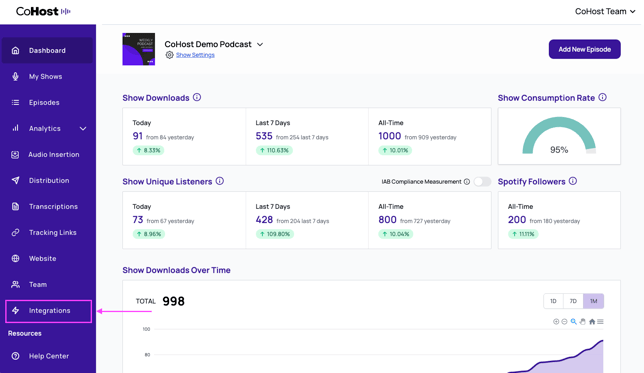
- In the CoHost left-side navigation bar, click Integrations.
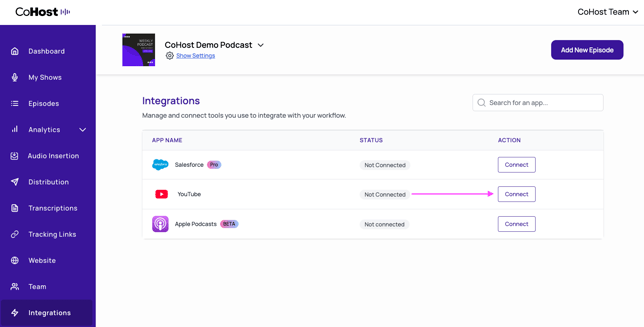
- Locate YouTube in the integrations table and click Connect. If you don’t see this option, contact CoHost support for further assistance.
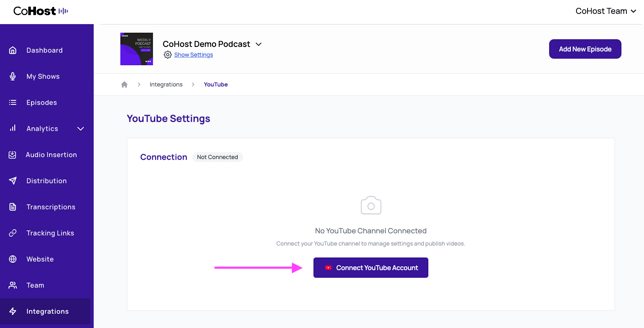
- Click Connect YouTube account. CoHost takes you to Google's sign-in page.
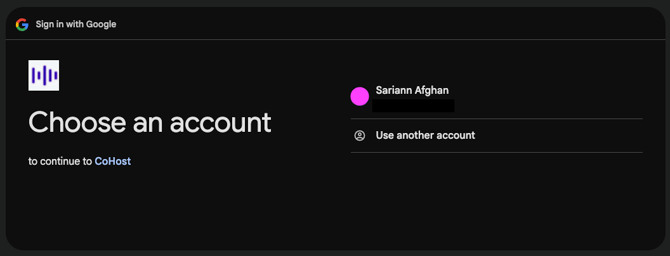
- Sign in with the Google account linked to your YouTube channel, then continue through the prompts.
- When Google says CoHost wants access to your Google account, click "Allow".
- You return to CoHost and your YouTube channel appears. Check that the channel information is correct before you continue.
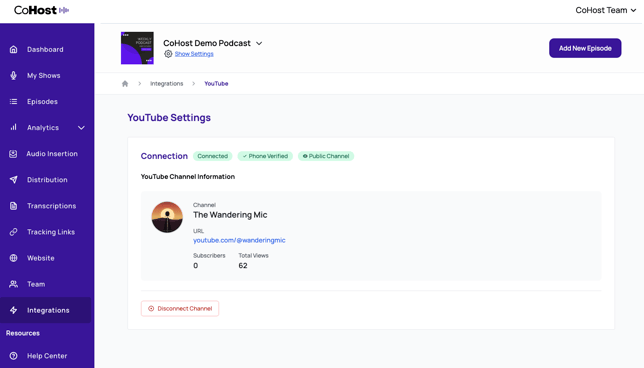
Note: If you manage more than one YouTube channel, make sure the channel shown is the one you want to publish to.
How to add a video episode that publishes to YouTube
Once YouTube is connected, you can add a video episode and publish it to your channel. You'll also set up an audio version of the episode in the same flow.
Steps to create a video episode
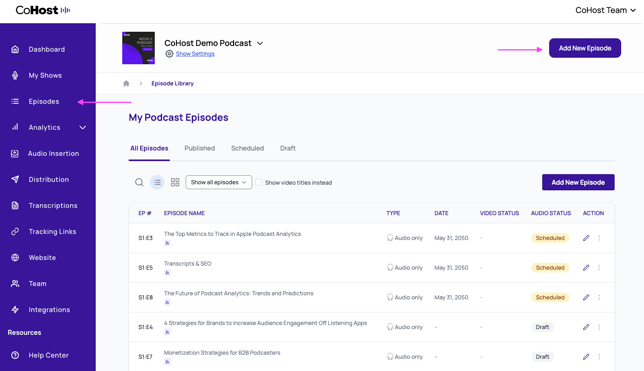
- Click Add New Episode, then toggle on the Video option.
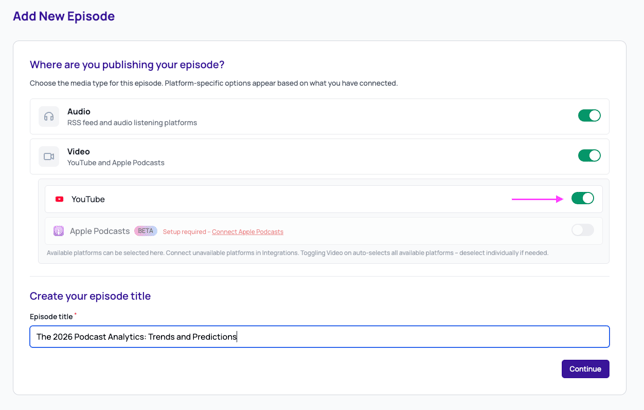
- Make sure YouTube is turned on for this episode. Enter your episode title, then click Continue.
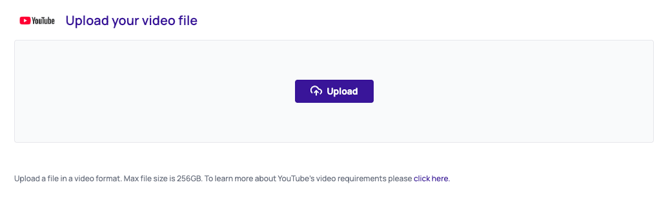
- Upload your video file. Use the help link on this step to review YouTube's video requirements before you upload.
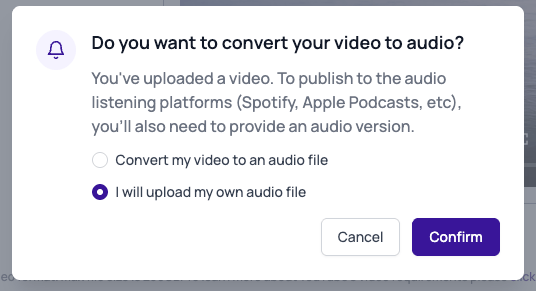
- After the upload, choose how to get your audio. Click the option to convert your video to audio, and CoHost converts it for you, or skip the conversion and upload your own audio file in the audio setup step.
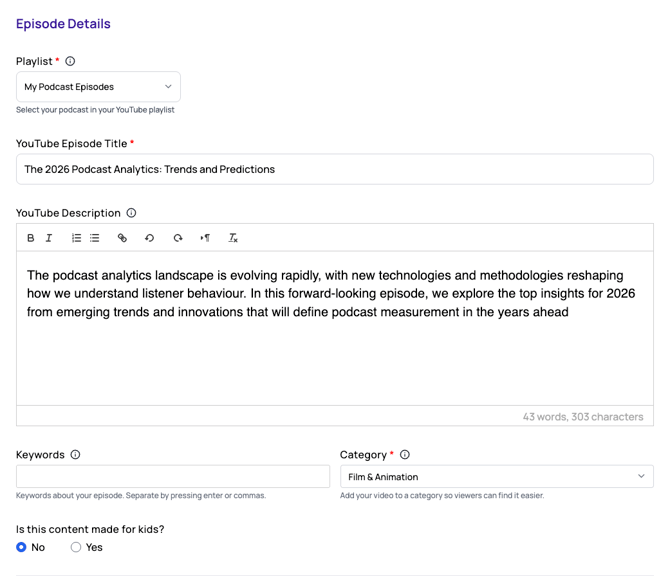
- Complete your video episode details: select the playlist dropdown and choose your podcast (see the note below), add your description, select a category, and choose your publishing details.
-
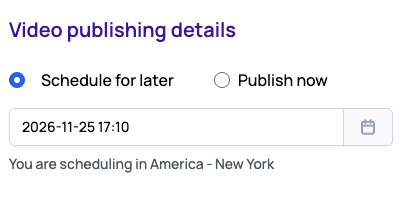
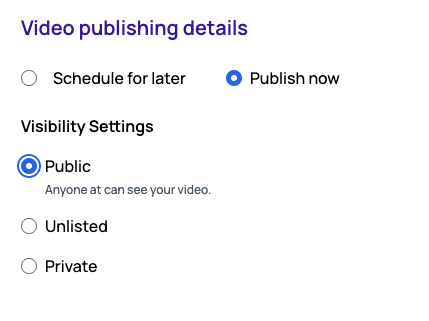
Choose your video publishing details: select Schedule later and pick a date and time, or select Publish now and choose a visibility setting. See Publishing options below.
- Click Go to audio setup. If CoHost is converting your video, the page shows the conversion status, and the audio appears here once it's ready. You can carry over the details you entered for the video, and CoHost fills in the missing audio fields.
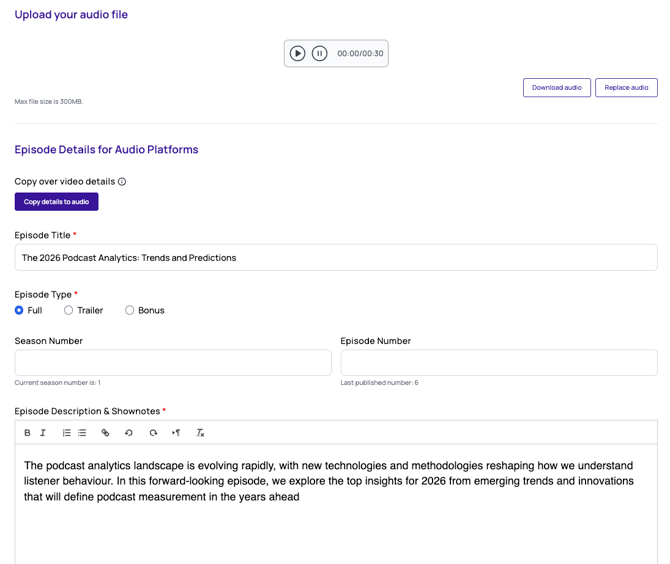
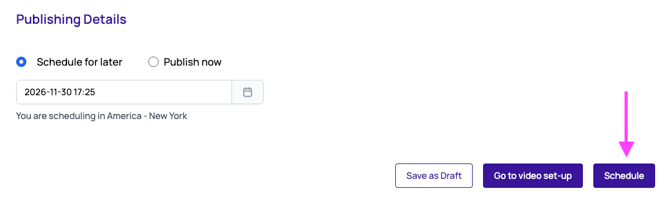
- Select your publishing details for the audio, then click Schedule.
Notes:
- Choose your podcast as the playlist. On YouTube, a podcast is a playlist. Choose your podcast in the playlist dropdown so YouTube recognizes your episode as a podcast. Once you choose it, CoHost saves it as your default playlist, because it won't change from episode to episode.
- Large files take time. Large files can take a while to upload. Keep the page open until the upload finishes.
What you need before you upload
Have the following ready before you start uploading, so you can get through the video episode steps without stopping.
|
Requirement |
Detail |
|---|---|
|
YouTube channel |
The channel you want to publish your video episodes to. |
|
Google account |
The account linked to that channel. You sign in with it on Google's own page. |
|
Video file |
Up to 256 GB, in one of the supported formats below. Use the help link on the upload step to review YouTube's video requirements. |
|
Episode details |
Title, description, playlist (choose your podcast), and category. |
|
Publishing details |
Publish now (and choose a visibility setting) or schedule for later (and choose a date and time). See Publishing options below. |
|
Audio file (optional) |
Only if you don't want CoHost to convert your video to audio for you. |
|
Supported video formats |
MOV, MPEG4, MP4, AVI, WMV, MPEGPS, FLV, 3GPP, and WebM. |
If you upload a file outside these specifications, CoHost shows you an error before the video uploads and processes, so you can fix the file and try again.
Publishing options
In the publishing details, choose when your episode goes out:
|
Option |
What happens |
|---|---|
|
Schedule later |
Select the date and time you want the episode to publish. |
|
Publish now |
Publishes your episode right away. CoHost prompts you to choose a visibility setting. |
If you choose Publish now, select one of these visibility settings:
- Public: anyone can see your video.
- Unlisted: anyone can see your video if they have the link.
- Private: only you and the people you invite can see your video. It won't appear in the videos tab of your channel.
What CoHost handles for you
If you don't have an audio version of your video episode, CoHost can convert your video to audio. It notifies you when the audio file is ready, and the audio setup step shows the status while it converts. You can also carry over your video details to the audio portion, and CoHost fills in the missing areas.
After you submit
When you submit both the video and the audio, CoHost returns you to the View Episode page with a notification that your video has been published or scheduled.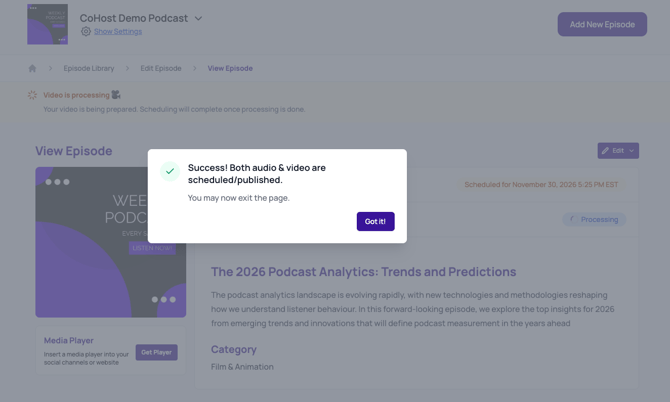
Note: Make sure you submit both your audio and your video information. If you finish one but not the other, CoHost prompts you to finish the remaining one.
For example, after you schedule your audio, a message tells you that you haven't published your video yet and asks what you'd like to do next. Select "Continue to video set-up" to finish the video, or "Exit" to leave without publishing it.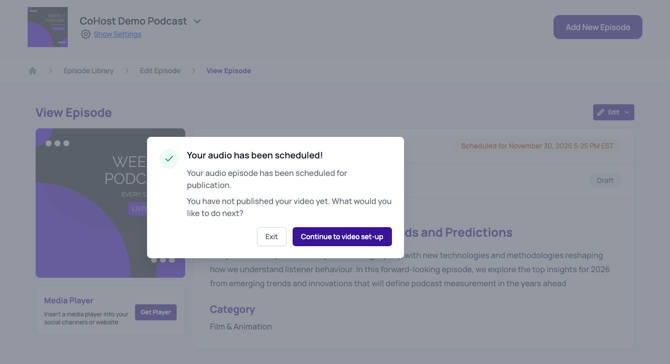
Common reasons an episode might not publish
- Your YouTube channel doesn't appear after you allow access. Confirm you signed in with the Google account that owns the channel. If it still doesn't appear, go back to Integrations and connect again.
- Your video won't upload. CoHost shows an error before the upload starts if the file is outside the supported specifications. Check that the file is a supported format (MOV, MPEG4, MP4, AVI, WMV, MPEGPS, FLV, 3GPP, or WebM), is under 256 GB, and meets YouTube's video requirements, using the help link on the upload step.
- Your audio file isn't ready. Conversion runs in the background. The audio setup step shows its status, and CoHost notifies you when it finishes.
Checklist: before you submit a video episode
- Channel: YouTube is connected on Integrations and shows the right channel.
- Toggle: YouTube is turned on for this episode.
- Video: the file is a supported format, is up to 256 GB, and meets YouTube's video requirements.
- Audio: you chose to convert your video, or you uploaded your own audio file.
- Details: title, description, playlist (your podcast), category, and publishing details are filled in for both video and audio.
Need help? Reach out to CoHost support or your account manager, and let them know the show name, the step where you got stuck, and any error message you saw. That way, we can get you sorted faster.